
Single sign-on§
Intro§
Warpgate can use arbitrary OpenID Connect (OIDC) providers to authenticate users based on their verified emails.
OIDC providers include, but are not limited to:
- Google Accounts
- Sign in with Apple
- GitLab
- Microsoft Azure
- Okta *
Configuration§
External host§
Set the primary external domain explicitly via the top-level external_host config option:
+ external_host: warpgate.acme.inc
external_hostcan include a port as well
Obtaining app credentials from a provider§
You'll need to register your Warpgate instance as an "app" (terminology varies per provider) at the provider and obtain a Client ID and a Client secret. You'll need to provide a Redirect URL which - which will be verified by the SSO provider.
The redirect URL (aka return URL) for Warpgate is https://<warpgate-external-host>/@warpgate/api/sso/return.
For providers that do not allow the @ sign in the URL (Azure), you can use an underscore instead: https://<warpgate-external-host>/_warpgate/api/sso/return (v0.22+ only):
  sso_providers:
  - name: azure
+   return_url_prefix: _
    provider:
      type: azure
      ...
Okta provides excellent guides on registering an app with various providers:
Adding credentials to the config file§
With a Client ID and a Client Secret in hand, you can add these to the Warpgate config file:
Google§
external_host: warpgate.acme.inc:8888

+ sso_providers:
+ - name: google
+   label: Google login
+   provider:
+     type: google
+     client_id: 1234...
+     client_secret: ABC...
Microsoft Azure§
external_host: warpgate.acme.inc:8888

+ sso_providers:
+ - name: azure
+   return_url_prefix: _
+   provider:
+     type: azure
+     client_id: 123...
+     client_secret: ABC...
+     tenant: XYZ...
Apple§
external_host: warpgate.acme.inc:8888

+ sso_providers:
+ - name: apple
+   label: Apple ID
+   provider:
+     type: apple
+     team_id: ABC...  # your Apple Team ID
+     client_id: com.warpgate.test  # your Service ID (not the App ID!)
+     key_id: ABC...  # the ID of the key you've created
+     client_secret: ABC...  # Base64 encoded contents of the .p8 private key file you've got from Apple
Custom§
external_host: warpgate.acme.inc:8888

+ sso_providers:
+ - name: custom
+   label: ACME SSO
+   provider:
+     type: custom
+     client_id: 123...
+     client_secret: ABC...
+     issuer_url: https://sso.acme.inc
+     scopes: ["email"]
Domain handling§
There are two possible ways Warpgate can handle SSO when it's servicing multiple domains. Consider the following setup:
- Warpgate itself listens on
warpgate.acme.incand has SSO enabled. - There is an HTTP target bound to
target.warpgate.acme.inc.
Option A: return to the main domain for SSO§
When a user logs in at target.warpgate.acme.inc, they will be redirected to SSO with a redirect URL constructed from warpgate.acme.inc. This means you can keep a single redirect URL in the SSO config, but for the user session to work across domains, every target-bound domain must be a strict subdomain of the external_host.
This is the default in Warpgate pre-0.23 and from 0.25 onwards.
Option B: stay on the same domain§
When a user logs in at target.warpgate.acme.inc, they will be redirected to SSO with a redirect URL that retains target.warpgate.acme.inc as domain name. This means that the user will remain within the same domain throughout, but every target subdomain needs to be explicitly added to the SSO provider's redirect URL list.
This has briefly been the default in Warpgate 0.24.
Choosing the option§
Set return_url_domain to either external_host or host_header:
  sso_providers:
  - name: custom
    label: ACME SSO
+   return_url_domain: host_header
    provider:
    ...
OIDC audience verification§
Normally, the OIDC provider should issue a token that is only valid for Warpgate itself. If this is not possible, you have two options:
- Explicitly whitelist additional trusted audiences:
  sso_providers:
  - name: custom
    label: ACME SSO
+   additional_trusted_audiences:
+   - one
+   - two
    provider:
    ...
- Fully ignore any additional audiences in the token (v0.13.1+):
  sso_providers:
  - name: custom
    label: ACME SSO
+   trust_unknown_audiences: true
    provider:
    ...
Automatically creating users§
Warpgate can automatically create users for new SSO logins. The SSO server has to provide the preferred_username OIDC claim for this to work.
  sso_providers:
  - name: custom
    label: ACME SSO
+   auto_create_users: true
    provider:
    ...
Requiring SSO for a user§
Users are linked to their SSO accounts based on their email. If the SSO provider advertises email verification status, Warpgate will require the email to be verified.
To link a user to SSO, click Add SSO in the credentials section, and then (optionally) set SSO as the only accepted credential type for HTTP connections.
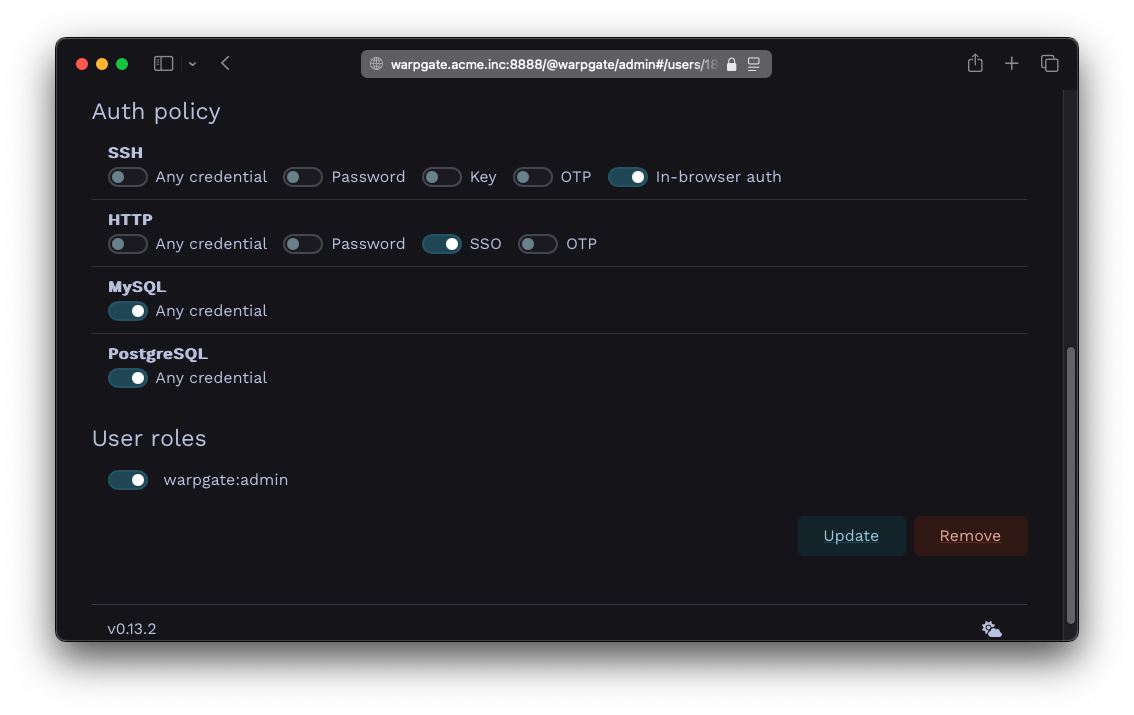
Setting SSO as the only authentication method
Here, we've also set SSO to be the only allowed login credential for HTTP auth, and have set SSH to use out-of-band web authentication.
In-browser auth(OOB web authentication) means that Warpgate will send a login link to the SSH client and will wait for the user to authenticate themselves in a browser. The auth requirements will be the same as set for thehttpprotocol.
❯ ssh cwilde:tnt@warpgate.acme.inc -p 2222
----------------------------------------------------------------
Warpgate authentication: please open https://warpgate.acme.inc/@warpgate#/login/31282192-ad29-4fa7-bdc2-5b481d531e58 in your browser

Make sure you're seeing this security key: E E 0 5
----------------------------------------------------------------

(cwilde:tnt@warpgate.acme.inc) Press Enter when done:
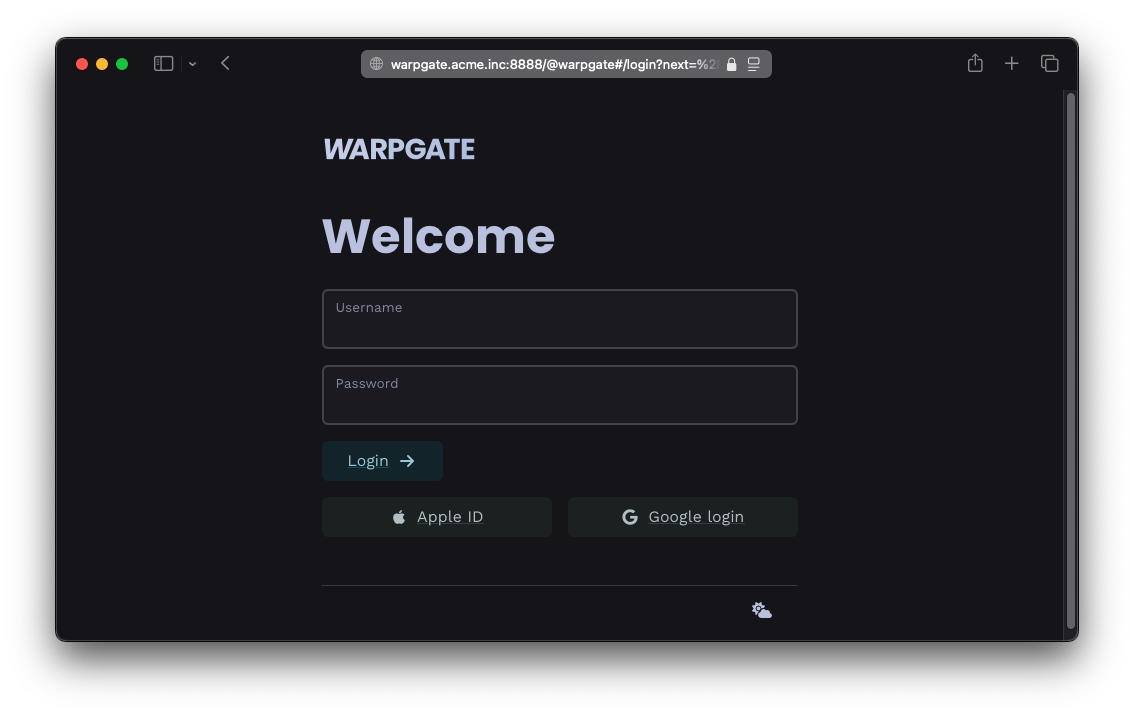
Login page with SSO buttons
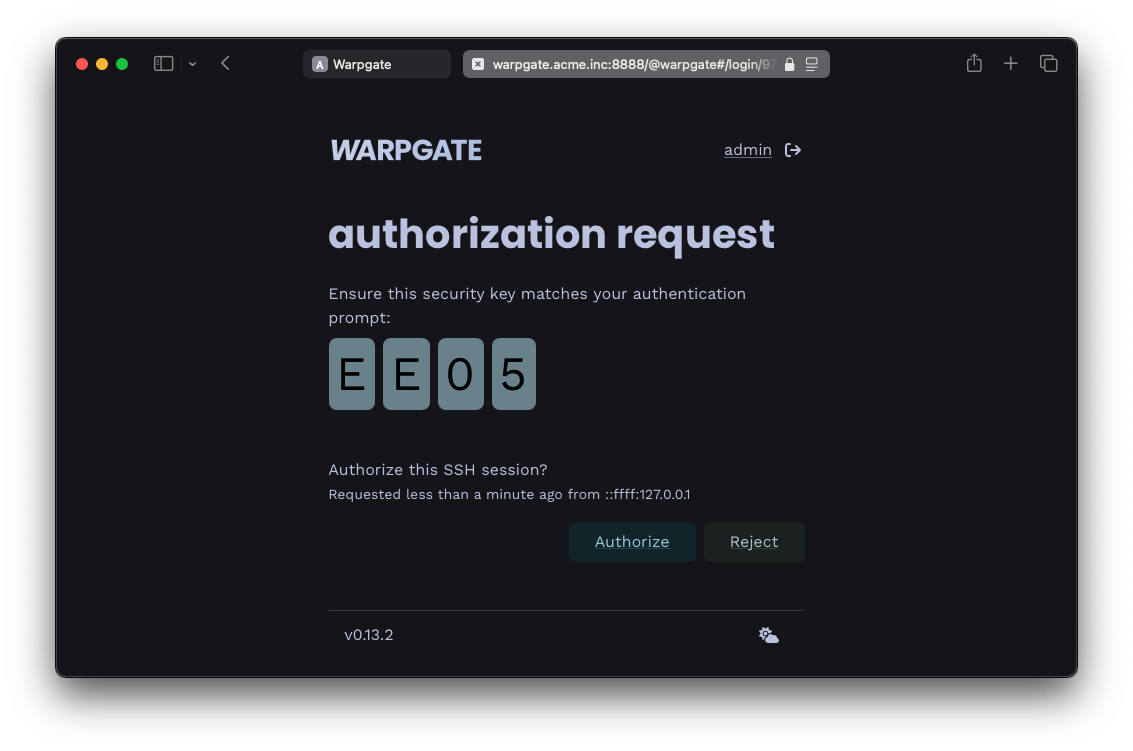
In-browser auth request
Setting roles via SSO§
With custom type OIDC providers, Warpgate can also sync the user's role memberships when they log in.
For that, your provider must set a warpgate_roles OIDC claim (a JSON array of role names) either in the ID Token or the UserInfo response. By default, Warpgate will use these names as-is and completely overwrite the user's memberships.
The corresponding optional warpgate_admin_roles claim is interpreted as a list of admin roles to apply.
You can also set role_mappings/admin_role_mappings in the provider's configuration to explicitly map claim values to role names. In this case, only the roles mentioned here will be synced from SSO, and the memberships in other roles won't be affected. For example:
- name: oidc-custom
  label: Custom SSO
  provider:
    type: custom
    client_id: ...
    client_secret: ...
    issuer_url: ...
    scopes: []
    role_mappings:
      'QA group': 'qa'
      Admins: 'warpgate:admin'
Mapping from a groups claim§
Some providers (e.g. Okta with an org authorization server) can only emit a standard groups claim and do not support arbitrarily-named claims like warpgate_roles. In that case, set roles_claim/admin_roles_claim to the name of the claim that carries the group memberships, and map those groups to Warpgate roles via role_mappings / admin_role_mappings:
- name: oidc-custom
  label: Custom SSO
  provider:
    type: custom
    client_id: ...
    client_secret: ...
    issuer_url: ...
    scopes: ["openid", "groups"]
    groups_claim: groups
    role_mappings:
      'QA group': 'qa'
      Admins: 'warpgate:admin'
Warpgate reads the claim from the ID token first, then falls back to the UserInfo response. The claim may be a bare string, an array of strings, or SCIM-style objects (RFC 7643) - groups can be matched either by their stable ID or their display name.
Syncing Google Workspace groups§
Google Workspace does not expose group memberships in OIDC claims, but Warpgate can use Google's Directory API to fetch the user's groups during login.
For that you'll need to:
-
Create a new Google Cloud service account. Note the Service Account E-mail and Client ID.
-
Create a new JSON private key for the account and download it.
-
Open the key file and copy the
private_keyJSON value from it as-is, including the surrounding quotes. -
Add the new SSO provider properties:
  - name: google
    label: Google
    provider:
      type: google
      client_id: 123....
      client_secret: GOCSPX...
+     admin_email: admin@acme.inc
+     role_mappings:
+       qa@acme.inc: qa
+     admin_role_mappings:
+       admins@acme.inc: 'warpgate:admin'
+     service_account_email: warpgate@xyz.iam.gserviceaccount.com
+     service_account_key: "-----BEGIN PRIVATE...
-
admin_emailis the email of a Google Workspace admin user that Warpgate will impersonate when calling the Directory API. -
Enable Admin SDK API.
-
Enable domain-wide delegation, using your service account's Client ID (visible in the service accounts list) and
https://www.googleapis.com/auth/admin.directory.group.readonlyscope value.
Hiding password login§
If your users primarily use SSO, you can hide the password login form via Config > Global parameters > Minimize password login UI.